
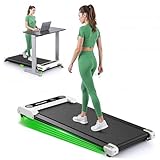
Integrating an under-desk treadmill into your workday is a brilliant way to combat a sedentary lifestyle. However, a poorly configured workstation can inadvertently trade one set of health problems for another, replacing the risks of sitting with the strain of improper posture while walking.
Achieving a comfortable, productive, and injury-free walking-while-working experience hinges on a few key principles of ergonomics—the science of designing a workspace to fit the user. Here is a practical, step-by-step guide to setting up your station for success.
The Golden Rule: The 90-Degree Elbow Angle
This is the foundational principle of all desk ergonomics, and it’s even more critical when you’re in motion. For optimal posture and minimal strain on your shoulders, neck, and wrists, your desk should be at a height that allows your elbows to be bent at an approximately 90-degree angle when your hands are resting on the keyboard.
How to Set It:
1. Put on the shoes you will typically wear while walking.
2. Stand on your walking pad (e.g., the FUNRAY PBJ-L-02).
3. Let your arms hang naturally at your sides, then bend your elbows to 90 degrees.
4. Adjust your standing desk so that the top of the keyboard rests just at or slightly below your fingertips.
Your wrists should be straight, not bent upwards or downwards, as you type. This neutral position minimizes the risk of repetitive strain injuries.

The Line of Sight: Keeping Your Neck Neutral
The second most common ergonomic mistake is monitor placement. Hunching over to look down at a laptop screen is a primary cause of “tech neck” and upper back pain.
How to Set It:
1. Position your monitor directly in front of you.
2. Adjust the monitor height so that the top edge of the screen is at or slightly below your eye level.
3. The screen should be about an arm’s length away. You shouldn’t have to crane your neck forward or backward to see it clearly.
If you use a laptop, an external monitor or a laptop stand is a non-negotiable ergonomic investment.
Matching Speed to Task: A Practical Guide
Walking while performing complex, mouse-heavy tasks can be challenging. The key is to match your walking speed to the cognitive and physical demands of your work.
- 0.8 – 1.5 MPH (Slow Pace): This is the ideal range for tasks that require significant typing or precise mouse movements. The motion is gentle enough that it doesn’t disrupt fine motor control for most people.
- 1.5 – 2.5 MPH (Moderate Pace): This range is excellent for more passive work, such as reading documents, attending webinars, or participating in phone calls. The movement is more noticeable but generally doesn’t interfere with comprehension or conversation.
- 2.5+ MPH (Brisk Pace): Higher speeds are best reserved for dedicated walking breaks away from the keyboard, when you can focus fully on the movement, perhaps while listening to a podcast or simply thinking. The FUNRAY PBJ-L-02‘s top speed of 3.8 mph is well-suited for these brisk, focused walks.
Safety and Comfort Checklist
Finally, ensure your environment is set up for a safe and comfortable experience.
- Cable Management: Make sure all power cords and cables are secured and out of the way to prevent tripping.
- Wear Appropriate Footwear: Always wear comfortable, supportive athletic shoes.
- Level Surface: Ensure the walking pad is on a flat, level surface to prevent rocking or instability.
- Listen to Your Body: Start with shorter walking sessions (e.g., 20-30 minutes) and gradually increase the duration as your body adapts. If you feel any new aches or pains, reassess your ergonomic setup.
Conclusion: From Novelty to Productivity Tool
An under-desk treadmill can be more than just a novelty; it can be a seamless and powerful productivity tool. The key to this successful integration lies in a mindful approach to ergonomics. By taking the time to correctly set up your desk height, monitor position, and walking speed, you create an environment where you can reap the profound health benefits of all-day movement without sacrificing comfort, focus, or safety.

